Users
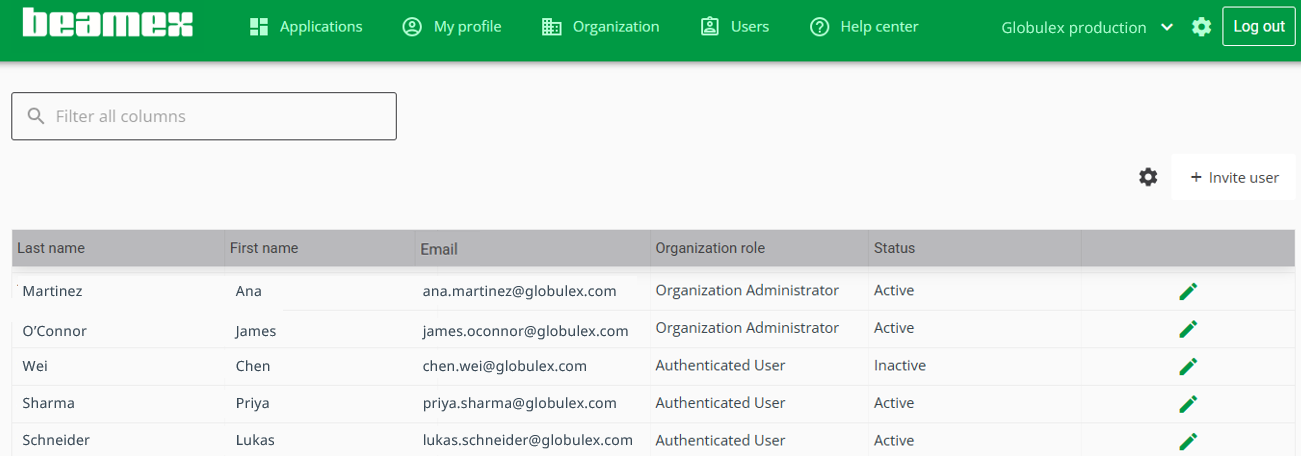
This view is for organization administrators to manage users in their organization. You can:
- invite new users and follow the status of invitations
- search users
- activate or inactivate users
- remove users
- troubleshoot user access and status
- configure the view to show information you need
User invitations
Organization Administrators can invite other users to join the Organization, and follow the invitation status. This happens through the users tab by clicking + Invite user .
Invite user
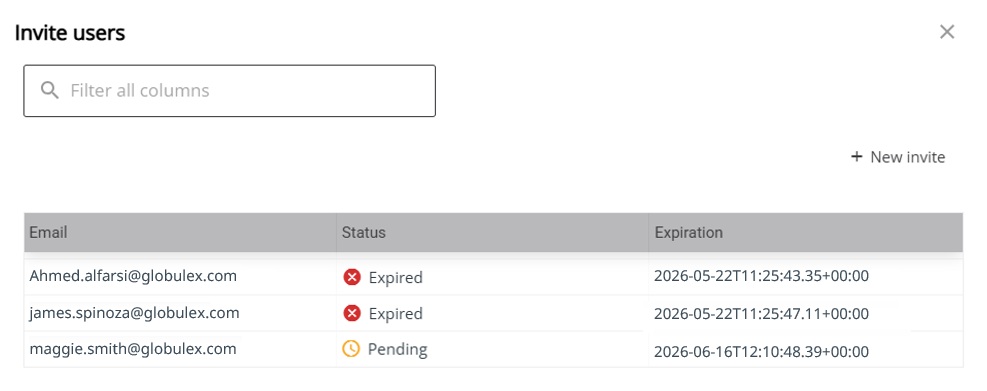
- Click
+ Invite userin the users tab - Click
+ New invite - Add email address of the invited user and click
Invite. An invitation is valid for 7 days. - Once done, click
Close
If you want to invite multiple users at the same time, use semicolon “;” to separate the email addresses (e.g. email 1; email 2; …)
Follow the invitation status
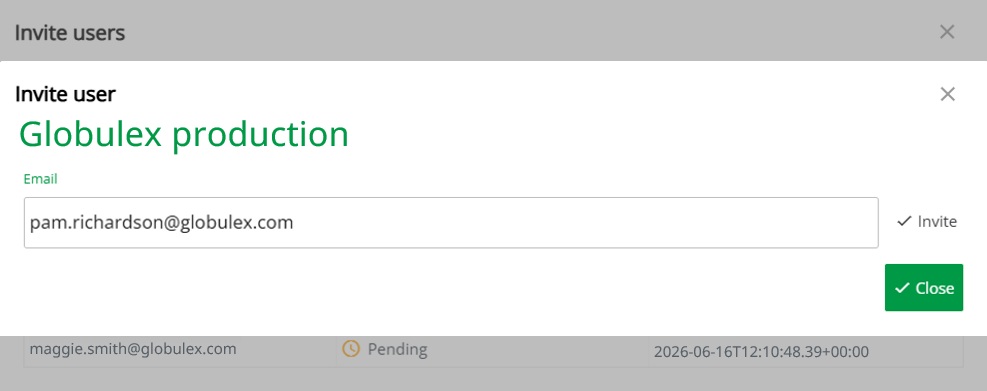
You can see the pending and expired invitations. You can use the search to look for example for a specific user or expiration year
Once an invited user has joined the organization, the pending invitation is removed from the list.
Maintain users
As an organization administrator, you can manage users in your organization, including:
- Setting user status (active or inactive)
- Assigning the organization role (Organization Administrator or regular user)
- Removing users from the organization
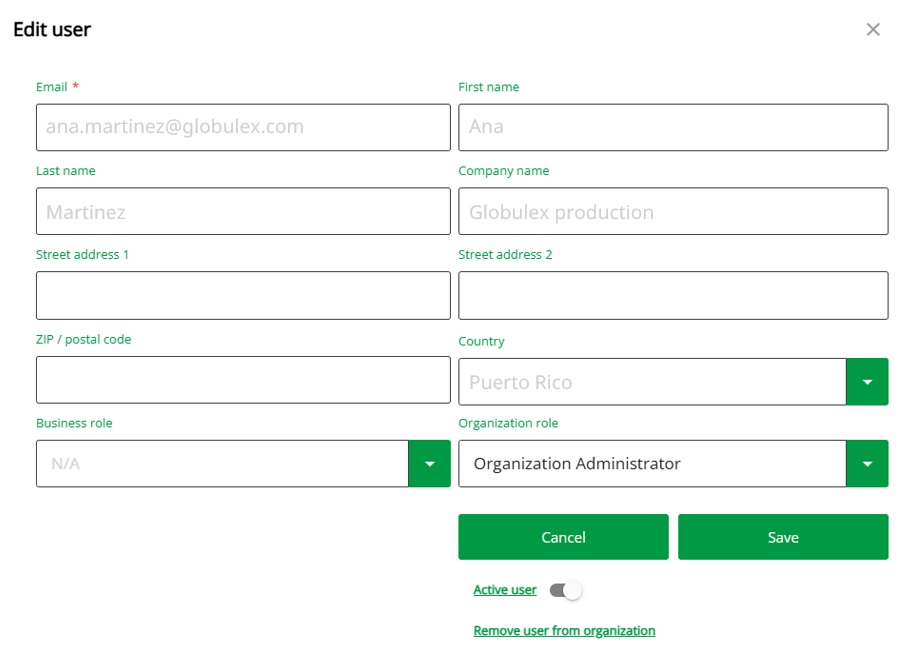
To edit a user, click the on the user row.
You cannot modify user’s personal information. Personal details can only be updated by the users themselves.
Active / inactive user
Only active users can access your organization. So by marking users inactive, you prevent them from accessing your Organization. Active user toggle can be found from the bottom of the Edit user -view.
Remove user from organization
This can be used if you want to permanently remove a user from your organization. This user can be invited to join the organization again if needed.
Changing user's role
An invited user automatically inherits Authenticated user -role. An authenticated user can be promoted to organization administrator, (or vice versa) from the Organization role -field.
An organization administrator can
- Invite other users to join their organization
- Manage the organization and users
Authenticated users can
- Use e.g. LOGiCAL
- Maintain their personal information in myBeamex.
An organization MUST always have at least one organization administrator. Two is preferred.
Configure the users view
To configure the users view to your liking by showing / hiding columns important to you. Click the gear icon next to invite user to open the configuration dialogue.
The configurable columns are listed below:
| Column | Description |
|---|---|
| Last name | Self-eplanatory |
| First name | Self-eplanatory |
| Self-eplanatory | |
| Organization role | Organization administrator or Authenticated (regular) user |
| Identity provider | local, or through an identity provider (SSO) |
| Status | Active or inactive user |
| Last login | Helps in troubleshooting or to identify users who have not been using the system and consider inactivating them. |